SlidesGo – The Essential Guide AI Presentation Maker
What is Slidesgo?
Slidesgo is a wonderful resource for creating engaging presentations in a matter of a couple of minutes using prompts or customizable templates. AI-generated presentations offer versatility and customization capabilities, enhancing audience engagement through interactive and animated features. Additionally, SlidesGo provides AI-generated presentation tools with user-friendly features for modifying color themes, text, and multimedia elements. SlidesGo also has other AI tools to generate ice-breakers, create exit tickets, and produce lesson plans. In this blog, you will learn to create professional and engaging presentations and learn about other AI tools offered by SlidesGo.
Key Features of SlidesGo
1. Generate an entire Presentation with a Topic
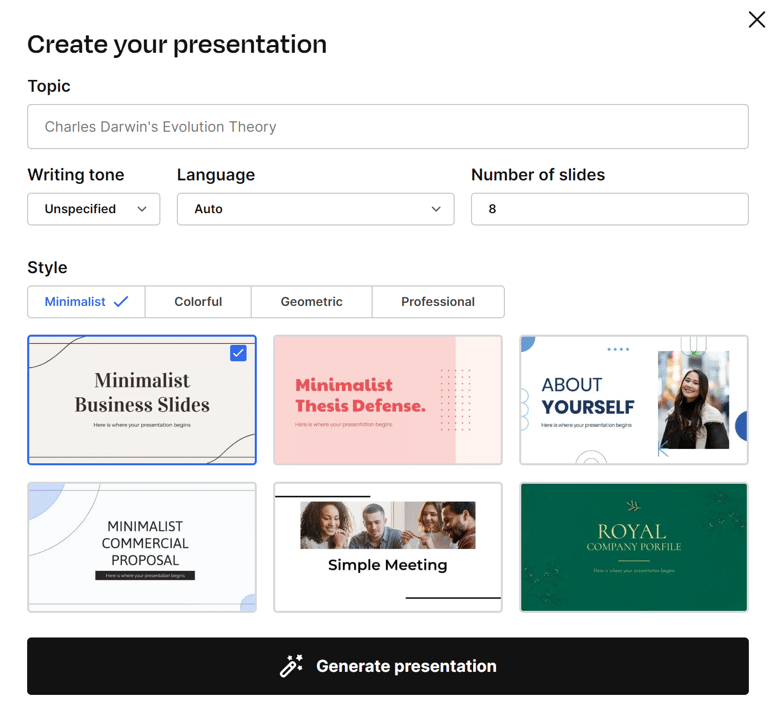
SlidesGo offers an impressive feature that allows you to create an entire presentation for free using AI presentations. These tools are highly functional and versatile, enabling users to generate visually appealing and tailored presentations. You just need to enter a detailed topic, select a writing tone, choose the language, specify the number of slides, and a style. For the topic, it’s important to be detailed. Instead of just a few words, try to provide a whole sentence to get a presentation tailored to your needs. For example, if you want to create a presentation about different ways to raise awareness or celebrate Earth Day, it’s better to write “Different ways to Celebrate Earth Day in Schools & Communities” rather than just “Earth Day.”
The writing tone helps in generating the words and sentences for the topic. You can choose from fun, creative, casual, professional, or formal tones.
You can generate presentations in multiple languages with SlidesGo. You can select Auto for the AI to determine the most appropriate language based on your topic, or choose among the 25 languages offered by the platform.
Next, you can choose the number of slides for your presentation. SlidesGo allows you to generate a presentation of 14 slides or less. However, you can always add more slides, up to a total of 85, after your presentation is generated.
The AI presentation maker offers 24 different styles in 4 categories: minimalist, colorful, geometric, and professional. Choose the appropriate style and have your presentation ready!
2. Edit the generated Presentation!
After creating your presentation, you can make edits to the slides using tools similar to those found in PowerPoint and Google Slides. AI-generated presentations offer significant advantages in enhancing audience engagement through interactive and animated features. In addition to these familiar features, there are a few noteworthy AI capabilities.
First, you can generate images from text or search for pictures in Freepik, an image bank.
Second, the content in your presentation can be translated into 25 different languages.
Lastly, if you need assistance generating written content for your slides, you can utilize the AI Writer to create it.
3. Build a Presentation using existing Templates
There are various presentation templates available on SlidesGo, sorted by content type, industry, color, and style. These templates enable you to quickly and easily convert your ideas into professional presentations, ensuring both efficiency and quality in the end product. You’ll find templates for various content types like marketing plans, thesis defenses, meetings, and more. There are extensive themes for business, marketing, technology, medical, and education sectors. Color-based templates are useful if your presentation revolves around a specific color. For instance, if you’re presenting on Saving Rivers, blue would be a standout choice, while for a Breast Cancer Awareness presentation, pink would stand out. You also have the option to choose a theme based on style, such as creative, simple, illustration, minimalist, vintage, aesthetic, and cute. Check out my blog 7 Creative Ways to Utilize SlidesGo Template for Stunning Presentations for ideas on using SlidesGo Templates.
By upgrading to a paid plan, you can access featured content, including cool themes. You’ll be able to create presentations featuring your favorite Disney and Pixar characters, use ready-made topics across various subjects, and incorporate animated presentations.
4. AI Icebreaker Generator, AI Exit Ticket Generator & AI Lesson Plan Generator
Apart from creating slides, SlidesGo also offers the opportunity to generate icebreaker activities and exit tickets using presentation AI, which enhances communication by providing multilingual support, allowing users to effectively engage with a diverse, global audience.
The AI icebreaker generator allows you to create icebreaker activities by specifying the discussion topic, audience type, number of participants, and language. It will then provide you with three different icebreaker activities that can be downloaded in PDF format. It’s a helpful tool for generating ideas for your icebreaker event.
Similarly, the AI exit ticket generator allows you to describe the lesson, select the grade level, evaluation type, and language to generate three sample exit tickets in PDF format. While it’s a useful tool for generating exit ticket ideas, it’s important to note that if you simply hand out the generated exit ticket to your students, they may easily recognize that it was AI-generated.
Finally, the AI Lesson Plan Generator helps create thorough and engaging lesson plans rapidly and effectively. Just explain the lesson topic, select the grade level, choose the classroom setting, and choose the language. Click “generate” and your lesson plan will be available for your use.

5. Learn more about PowerPoint, Google Slides, Presentation tips etc.
SlidesGo offers two great resources to help you improve your presentation skills: SlidesGo School and SlidesGo Community.
At SlidesGo School, you can access free blog posts with PowerPoint and Google Slide tutorials, presentation tips, design trends, and the latest news to take your skills to the next level.
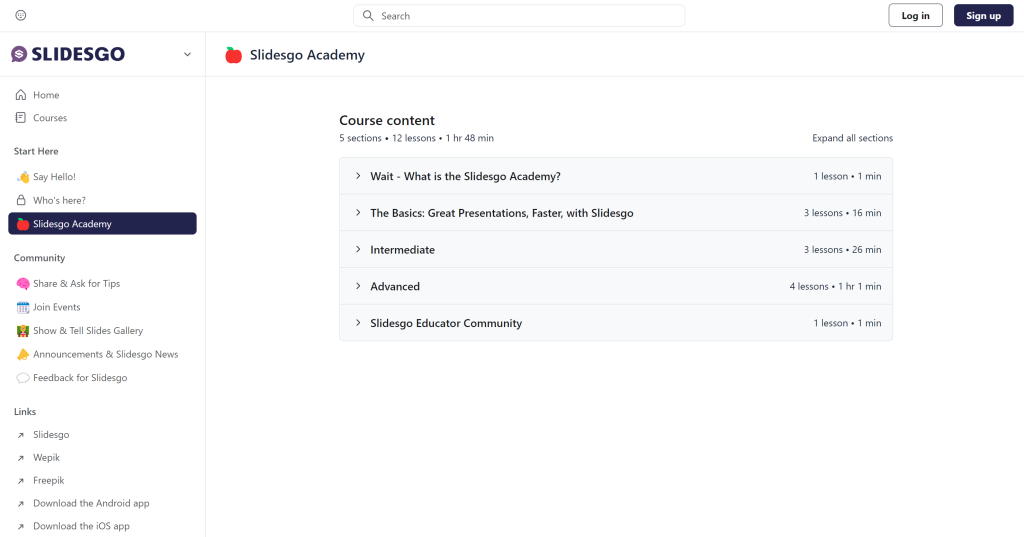
Join SlidesGo Community, which has over 5800 members, to enroll in a two-hour SlidesGo Academy course, ask for tips from others, join events, share your slides, and stay up-to-date with news and announcements from SlidesGo.
6. Key artistic elements of SlidesGo
- Freepik: Free vectors, photos and PSD
- Flaticon: Free customizable icons
- Wepik: Free online template editor
- Storyset: Free editable illustrations
- Videvo: Free videos and motion graphics
7. Still Like Old School way – Generate Your Own Slides from Blank
If you prefer the old school method of starting a presentation from scratch, that’s still an option with SlidesGo. However, I highly recommend using the AI approach – beginning with a template or creating a presentation based on a topic and then making edits.
Key User Interface Elements for SlidesGo
User Interface of the Main Menu Bar
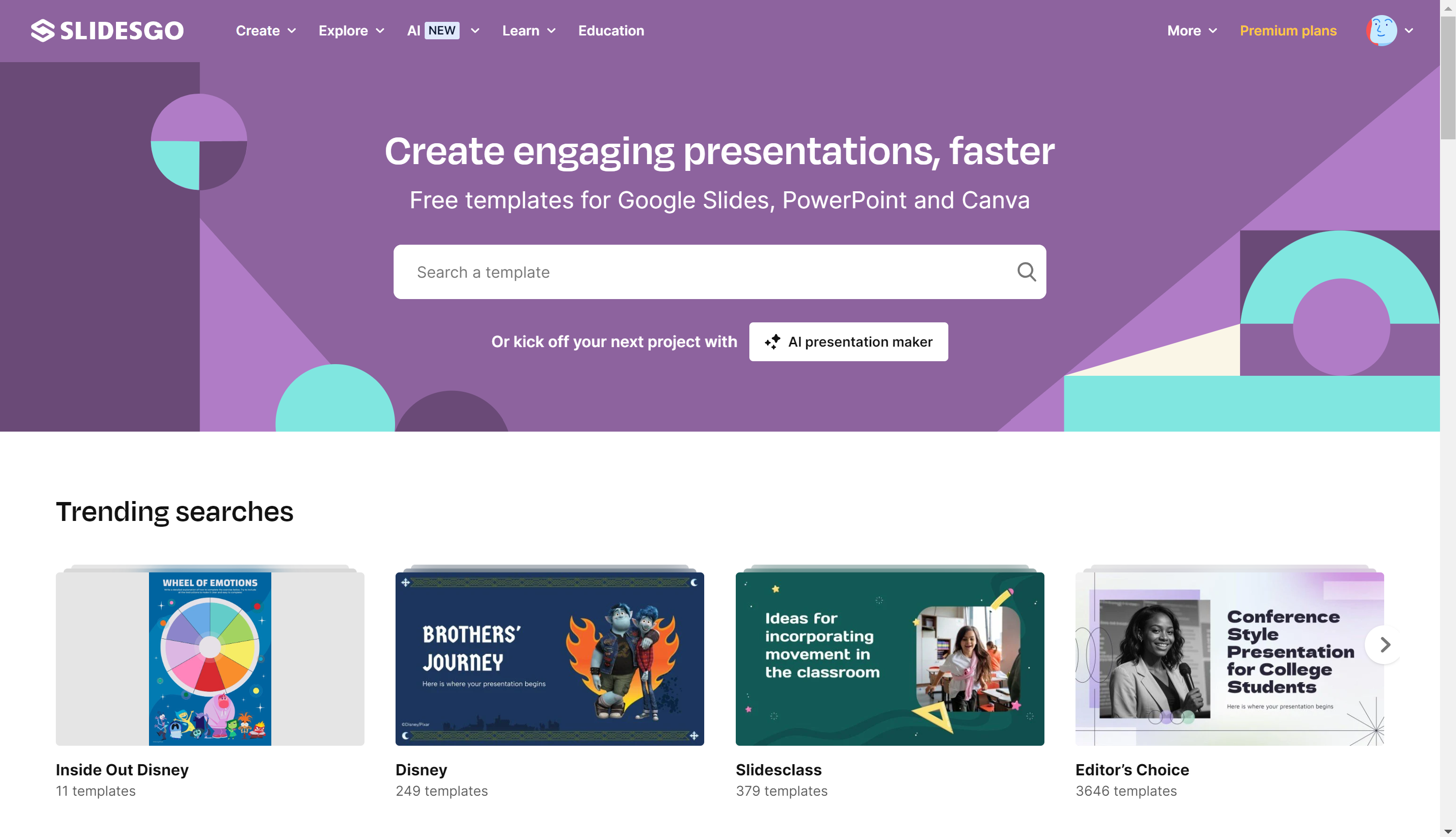
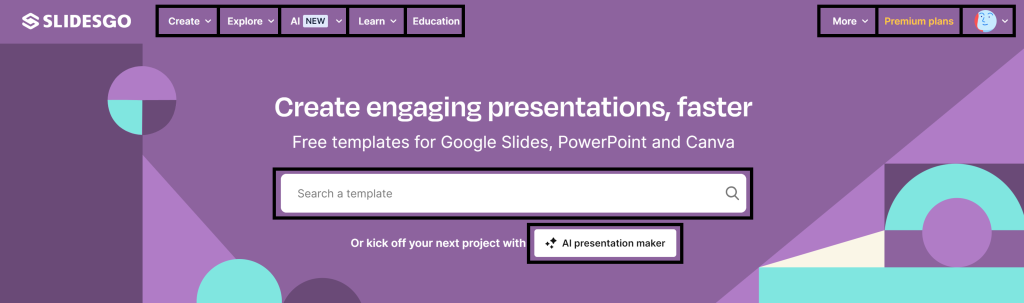
On the home screen and some other pages, you will notice a menu bar at the top of the page. The menu bar on the left side of the page has options for creating slides, choosing templates, various AI tools, learning about SlidesGo, and more. The menu bar on the right side of the page consists of a library for free graphical items, premium plan options, and a log in option.
User Interface of AI Presentation Maker
You can generate an AI presentation by providing Topic, Writing Tone, Language, Number of Slides, and Style. For tone, choose from unspecified, fun, creative, casual, professional, or formal. For language, choose from 25 different languages or simply select auto. For the number of slides, choose from 6-14 slides.
User Interface of Slides Editor
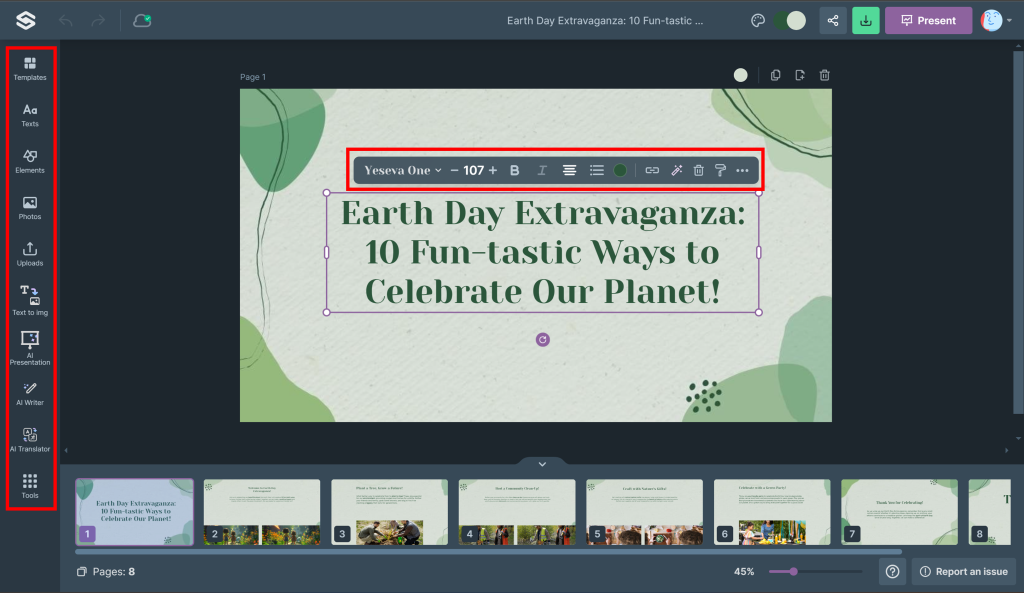
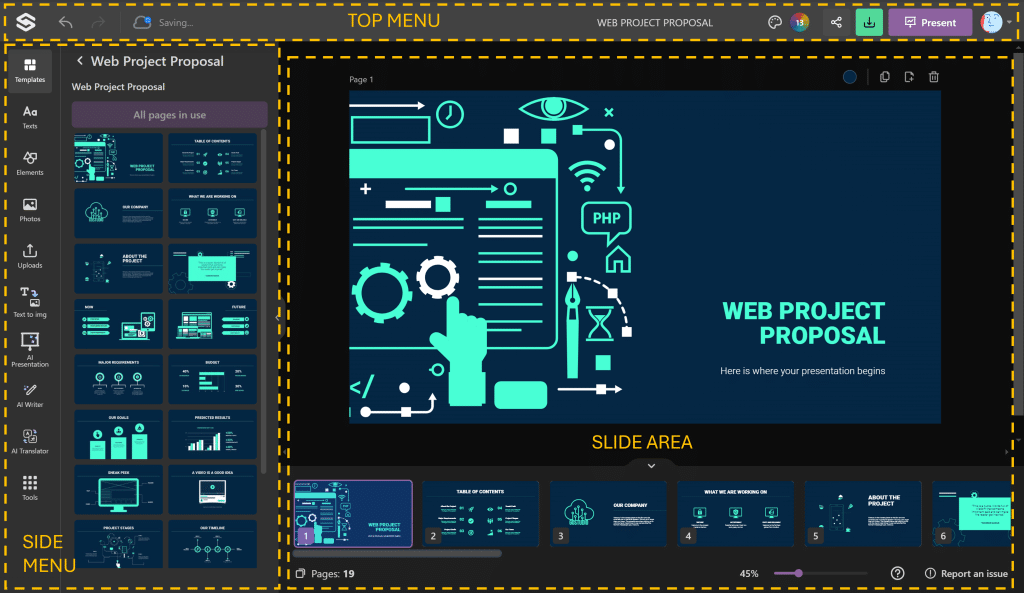
The top menu, side menu, and slide area are three major components of the online editor.
The top menu of SlidesGo’s online editor provides quick access to essential functions, including navigation to the main SlidesGo page, editing actions like Undo and Redo, file management options such as Save and Name, presentation styling with Template Style, collaboration features like Share, and output options including Download and Present.
The side menu offers a comprehensive toolkit for content creation and enhancement, featuring Template selection, Text insertion, Elements for visual appeal, Photos and Uploads for imagery, AI-powered tools like Text to Image, AI Presentation, AI Writer, and AI Translator, as well as additional editing tools to perfect your slides.
In the central slide area, users can manipulate the core content of their presentation, adjusting the Background color, managing slides through options to Duplicate page, Add Page, or Delete unwanted slides, and controlling the view with Zoom functionality for detailed editing or overview purposes.
Sample Project – Generate Slideshow for your Monthly Meeting
Option 1: You can generate slides by adding a prompt in the AI slide generator and then updating the slides accordingly. Presentations generated using AI tools can be shared and downloaded in various formats such as PPTX, PDF, and HTML5, emphasizing convenience and versatility. In this case we have typed in monthly meeting for marketing team, chosen a written tone of formal, chosen English language, chosen 8 slides and professional style.
Option 2: Alternatively, you can choose one of the themes for monthly meeting and edit it to for your slides.
Frequently Asked Questions
What are the free features of SlidesGo?
There are multiple free features in SlidesGo:
- Utilize all the AI tools available, including Presentation Generator, Icebreaker Generator, Exit Ticket Generator, and Lesson Plan Generator.
- Online Editor for editing presentations and templates.
- Access SlidesClass for ready-to-use lessons in multiple languages.
- Get access to 5 premium templates.
- Complies with Data Protection Policy for minors and FERPA law, making it a suitable tool for minors.
What are the benefits of the SlidesGo Premium Version?
Apart from the benefits of the free version, the premium version of SlidesGo provides the following benefits:
- Access to an unlimited number of 15000+ premium templates.
- Flexible user assignment – you can add, remove, or reassign users.
- Higher discounts for more users – up to 37%.
- No need to provide attribution when sharing SlidesGo templates.
- Access to priority customer support and the ability to maintain a list of your favorite templates.
How can I install the SlidesGo theme in Microsoft PowerPoint, Google Slides, or Canva?
You can choose any of the templates in SlidesGo and download it as Microsoft PowerPoint, make a copy as Google Slides or use the template to edit in Canva. If you have generated a presentation using an AI Prompt, you can currently only download it as PowerPoint if you have premium plan.
Resources
- https://slidesgo.com/
- https://slidesgo.com/ai-presentations#rs=menu
- https://slidesgo.com/pricing
- https://slidesgo.com/ai-icebreaker-generator#from_element=main_menu
- https://slidesgo.com/ai-exit-ticket-generator#from_element=main_menu
- https://slidesgo.com/ai-lesson-plan-generator#from_element=main_menu