8 Essential One-Dimensional Drawing Tools in AutoCAD – Line, Polyline, Arc, Elliptical Arc, Spline, Point, Construction Lines and Ray

In AutoCAD, there is a wide range of drawing tools available for drafting. In this blog post, we will delve into the most frequently used one-dimensional drawing tools in AutoCAD, including line, polyline, arc, elliptical arc, spline, point, construction line, and ray. Each of these tools has its own specific function in AutoCAD, enabling designers to efficiently create precise, intricate, and detailed drawings.
Line
Line is one of the most fundamental components in AutoCAD used to create straight segments. You can create line in AutoCAD by typing L or LINE in the command line or simply select the Line option from the Ribbon Area (Home > Draw). Once the line command is activated, you can create a line using four different methods:
- Choose the starting and the ending point using your cursor in the drawing area
- Providing direct coordinates for the starting and ending point (make sure dynamic input is on)
- Providing relative coordinates for the starting and ending point (make sure dynamic input is on)
- Using temporary tracking and snaps from objects in the drawing
TIP: To join the first and the last segment, simply type c for close in the command line and the two lines will join.

Polyline
Polyline is a connected sequence of line segments and arcs. You can start the polyline command by typing PL or PLINE in the command line or from the Ribbon Area (Home > Draw). When using the polyline command, you can provide multiple vertices and choose between a line or an arc. Unlike Line, continuous segments in a polyline are considered one entity which simplifies editing. In a polyline, you have the option to convert a line to arc, an arc to line, create a new vertex, delete an existing vertex or stretch a vertex. Polylines can be customized with various properties, such as width, thickness, and joining options.
You can convert lines into polylines by selecting all the connected lines and using the JOIN command, or by using the PEDIT command. To use the PEDIT command, first activate it by typing PEDIT in the command line. Then select a line that you want to convert to polyline. Enter Y in the command line to convert the line into a polyline.
Arc
Arc is used to create curved segment in AutoCAD. You can create an arc by typing in ARC in the command line or from the Ribbon Area (Home > Draw). Once the command is active, you can create an arc by choosing the start point, the endpoint, and a third point that defines the arc’s curvature.
You can create arc with various other options from the Ribbon which are listed below:
- 3-point
- Start, Center, End
- Start, Center, Angle
- Start, Center, Length
- Start, End, Angle
- Start, End, Direction
- Start, End, Radius
- Center, Start, End
- Center, Start, Angle
- Center, Start, Length

Elliptical Arc
An elliptical arc is a segment of an ellipse which is used to create curved shapes that are not full ellipses. You can activate the command by typing ELLIPSE in command line & choosing the arc option or from the Ribbon Area (Home > Draw).

Spline
A spline is a smooth, curved line where the curve passes through defined control points. You can activate the command by typing SPLINE in command line or from the Ribbon Area (Home > Draw). The feature lets you easily create curves by adjusting the degree, fit tolerance, and start/end conditions, making it a powerful tool for both technical precision and creative design.
Point
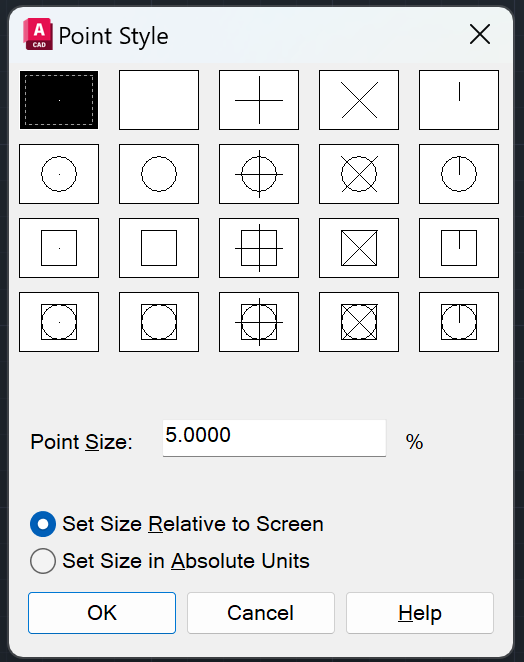
A point is used to mark specific location in a drawing. It can be created using the POINT or PO command, or from the Ribbon Area (Home > Draw). You can customize the appearance of points using the Point Style dialog box, which can be accessed by DDPTYPE command.
Construction Line
Construction line is an infinite line which serves as a reference for positioning or creating other objects in a drawing. You can create construction lines using the XLINE command or from the Ribbon Area (Home > Draw). Simply specify two points and the construction line will be created. Some of the uses of construction lines include setting up grids using horizontal construction line & vertical construction line, creating temporary intersection points, and aligning objects. A great thing about construction line is that they do not print, ensuring that it is solely used as a guide without affecting final output.
Ray
Ray is a linear object that extends infinitely in only one direction. You can create a ray using the RAY command or from the Ribbon Area (Home > Draw). First choose a starting point after which choose a second point through which you want the ray to go through.
One-Dimensional Drawing Tools in a Nutshell
| Tool | Command | Use |
| Line | L or LINE | Straight Segments |
| Polyline | PL | Connected sequence of line segments and arcs |
| Arc | ARC | Curved Segments |
| Elliptical Arc | ELLIPSE | Segment of an Ellipse |
| Spline | SPLINE | Smooth curved line |
| Point | PO or POINT | Mark a specific location |
| Construction Line | XL or XLINE | Infinite Line |
| Ray | RAY | Linear Object that extends infinitely in one direction |
To learn more about other aspects of AutoCAD, feel free to checkout 25 Foundational Concepts of AutoCAD.